
Problem Context
Every AI agent framework has its own way of defining tools — Semantic Kernel has plugins, LangChain has tools, AutoGen has function maps. If you build a "search documents" tool for one framework, you rebuild it for another. There's no standard way for LLMs to discover and call tools across different systems.
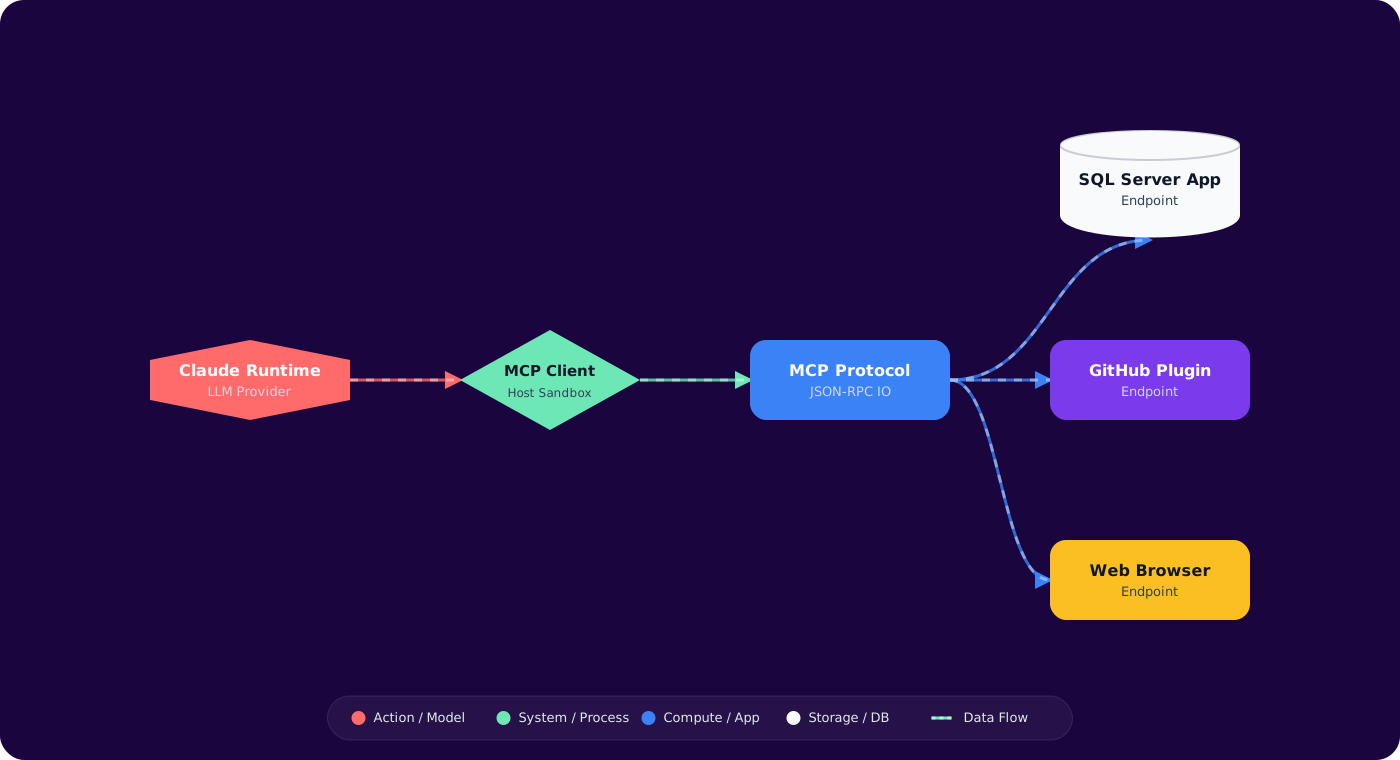
The Model Context Protocol (MCP) is an open standard that solves this. MCP defines how AI clients (like VS Code Copilot, Claude Desktop, or your own agent) discover and call tools exposed by MCP servers. Build a tool once as an MCP server, and every MCP-compatible client can use it.
- You've built custom tools for AI agents but they only work with one framework
- You want to expose internal APIs to AI assistants but need a standard interface
- You're intrigued by MCP but the docs feel abstract — you want to build something concrete
- You want VS Code Copilot or Claude to interact with your custom systems
This article builds a real MCP server from scratch, explains the protocol, and shows how to connect it to AI clients.
Concept Explanation
MCP follows a client-server architecture. The MCP client is the AI application (or the LLM runtime within it) that needs tools. TheMCP server exposes tools, resources, and prompts through a standardized JSON-RPC protocol. Communication happens over stdio (local) or HTTP with Server-Sent Events (remote).
      flowchart LR
          U["User"] --> C["AI Client\n(VS Code, Claude Desktop)"]
          C -->|"JSON-RPC"| S1["MCP Server:\nDatabase Tools"]
          C -->|"JSON-RPC"| S2["MCP Server:\nFile System"]
          C -->|"JSON-RPC"| S3["MCP Server:\nCloud APIs"]

          S1 --> DB["PostgreSQL"]
          S2 --> FS["Local Files"]
          S3 --> API["Azure / AWS"]

          style C fill:#4f46e5,color:#fff,stroke:#4338ca
          style S1 fill:#059669,color:#fff,stroke:#047857
          style S2 fill:#059669,color:#fff,stroke:#047857
          style S3 fill:#059669,color:#fff,stroke:#047857
MCP Capabilities
- Tools: Functions the LLM can call — query a database, create a ticket, search documents
- Resources: Data the client can read — file contents, database schemas, configuration
- Prompts: Reusable prompt templates that the server provides to the client
Transport Modes
stdio: The client spawns the server as a child process and communicates via stdin/stdout. Simple, secure (no network), ideal for local tools. HTTP + SSE: The server runs as a web service. Supports remote access, authentication, and multiple concurrent clients.
Implementation
Step 1: Create an MCP Server (.NET)
// Program.cs — MCP Server with tools
      using ModelContextProtocol;
      using ModelContextProtocol.Server;

      var builder = Host.CreateApplicationBuilder(args);
      builder.Services
          .AddMcpServer()
          .WithStdioServerTransport()
          .WithTools<DevOpsTools>();

      var app = builder.Build();
      await app.RunAsync();
Step 2: Define Tools
[McpServerToolType]
      public class DevOpsTools
      {
          private readonly HttpClient _http;

          public DevOpsTools(IHttpClientFactory httpFactory)
          {
              _http = httpFactory.CreateClient("devops");
          }

          [McpServerTool("list_recent_deployments")]
          [Description("List recent deployments for a service")]
          public async Task<string> ListDeployments(
              [Description("Service name")] string service,
              [Description("Number of deployments to return")] int count = 5)
          {
              var response = await _http.GetAsync(
                  $"/api/deployments?service={Uri.EscapeDataString(service)}&top={count}");
              response.EnsureSuccessStatusCode();
              return await response.Content.ReadAsStringAsync();
          }

          [McpServerTool("get_service_health")]
          [Description("Get current health status of a service including uptime and error rate")]
          public async Task<string> GetServiceHealth(
              [Description("Service name")] string service)
          {
              var response = await _http.GetAsync(
                  $"/api/health/{Uri.EscapeDataString(service)}");
              response.EnsureSuccessStatusCode();
              return await response.Content.ReadAsStringAsync();
          }

          [McpServerTool("search_logs")]
          [Description("Search application logs with a KQL-like query")]
          public async Task<string> SearchLogs(
              [Description("Service to search logs for")] string service,
              [Description("Search query")] string query,
              [Description("Time range in hours")] int hours = 24)
          {
              var response = await _http.PostAsJsonAsync("/api/logs/search", new
              {
                  service,
                  query,
                  timeRange = $"{hours}h"
              });
              response.EnsureSuccessStatusCode();
              return await response.Content.ReadAsStringAsync();
          }
      }
Step 3: Configure in VS Code
// .vscode/mcp.json
      {
        "servers": {
          "devops-tools": {
            "type": "stdio",
            "command": "dotnet",
            "args": ["run", "--project", "./tools/DevOpsMcp"],
            "env": {
              "DEVOPS_API_URL": "https://your-devops-api.internal"
            }
          }
        }
      }
Step 4: HTTP Transport for Remote Access
// Switch to HTTP+SSE for remote clients
      var builder = Host.CreateApplicationBuilder(args);
      builder.Services
          .AddMcpServer()
          .WithHttpTransport()  // HTTP instead of stdio
          .WithTools<DevOpsTools>();

      builder.Services.AddAuthentication()
          .AddJwtBearer(); // Protect with auth

      var app = builder.Build();
      app.MapMcp(); // Expose MCP endpoint
      await app.RunAsync();
Step 5: Resources for Context
[McpServerToolType]
      public class DevOpsResources
      {
          [McpServerTool("get_service_config")]
          [Description("Get the configuration for a service including environment variables and feature flags")]
          public async Task<string> GetConfig(
              [Description("Service name")] string service,
              [Description("Environment: dev, staging, production")] string environment)
          {
              // Returns configuration as structured data
              // The LLM can read this to understand the service context
              var config = await _configService.GetAsync(service, environment);
              return JsonSerializer.Serialize(config, _jsonOptions);
          }
      }
Pitfalls
1. Exposing write operations without confirmation
Tools that create, update, or delete resources should require explicit user confirmation. The LLM might decide to "clean up" by deleting things. MCP itself doesn't enforce this — your tool implementation must include safety boundaries.
2. Returning too much data
Tools that return thousands of lines flood the LLM's context window. Paginate results, limit row counts, and summarize large datasets. Return the minimum data the LLM needs to answer the user's question.
3. No authentication on HTTP transport
stdio servers are inherently local and secure. HTTP servers are network-accessible. Always add authentication (JWT, API keys) to HTTP-based MCP servers. An unauthenticated MCP server is an unauthenticated backdoor to your systems.
4. Vague tool descriptions
The LLM decides which tool to call based on the description. "Get data" is useless. "Get current health status including uptime percentage, error rate, and last deployment timestamp for a named service" tells the LLM exactly when to use this tool.
Practical Takeaways
- MCP is "USB for AI tools." Build once, connect to any MCP-compatible client. Start with stdio for local tools, add HTTP when you need remote access.
- Write specific tool descriptions. The description is the LLM's API documentation. Specific, detailed descriptions lead to correct tool selection. Vague descriptions lead to wrong calls.
- Limit output size. Return concise, structured data. Large outputs waste context window tokens and degrade the LLM's ability to reason about results.
- Secure write operations. Read-only tools are safe to expose broadly. Write tools need confirmation flows, rate limits, and careful access control.
- Start with internal DevOps tools. Monitoring, deployment status, log search — these are high-value, low-risk first MCP servers. Your team benefits immediately and the blast radius of errors is small.