
Problem Context
AI agents that can use tools, remember context, and plan multi-step actions are the next evolution beyond simple chat completions. But building them from scratch means writing your own tool-calling orchestration, memory management, and error handling — the parts that take 10x longer than the fun parts.
Semantic Kernel is Microsoft's open-source SDK for AI agent development in .NET (and Python). It provides the plumbing — plugin system, memory stores, planners, and function calling — so you can focus on what your agent actually does. But using it effectively requires understanding the patterns that survive production, not just the quickstart.
- You've built a chatbot and now need to add tool-calling, but the plumbing code is spiraling out of control
- Your agent works in demos but crashes in production when the LLM returns unexpected function arguments
- You need conversation memory that persists across sessions but don't want to build your own storage layer
- You've heard of Semantic Kernel but aren't sure if it's a framework or an SDK or a full agent platform
This article shows you how to build agents that are actually reliable — with real error handling and production patterns.
Concept Explanation
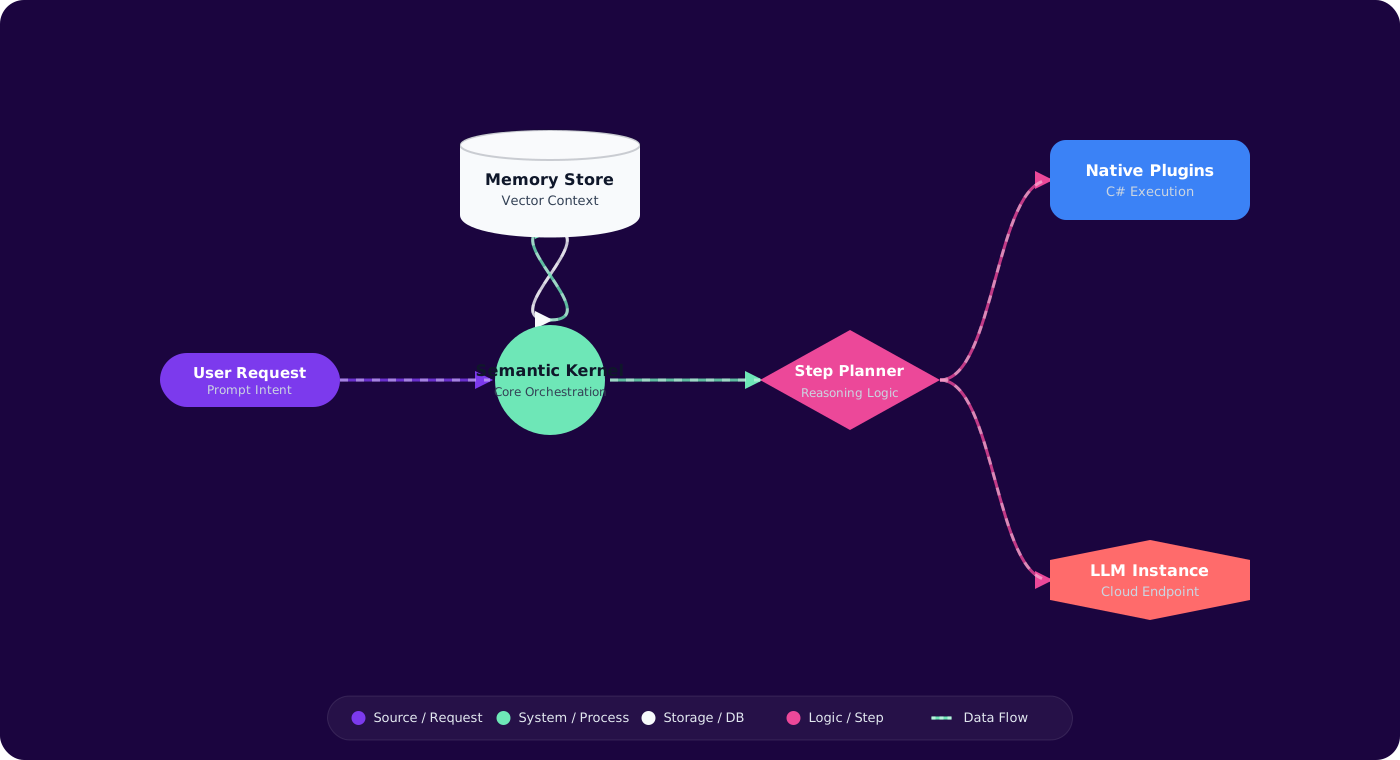
Semantic Kernel is a lightweight orchestration SDK. It connects LLMs to your code through plugins (functions the LLM can call),memory (persistent context), and planners (multi-step execution). The kernel is the glue between your business logic and the AI model.
      flowchart TD
          U["User Message"] --> K["Semantic Kernel"]
          K --> LLM["Azure OpenAI"]
          LLM -->|"function_call: search_docs"| K
          K --> P1["Search Plugin"]
          P1 -->|"results"| K
          K --> LLM
          LLM -->|"function_call: send_email"| K
          K --> P2["Email Plugin"]
          P2 -->|"sent"| K
          K --> LLM
          LLM --> R["Final Response"]

          style K fill:#4f46e5,color:#fff,stroke:#4338ca
          style LLM fill:#059669,color:#fff,stroke:#047857
          style P1 fill:#7c3aed,color:#fff,stroke:#6d28d9
          style P2 fill:#7c3aed,color:#fff,stroke:#6d28d9
Core Concepts
Plugins: Collections of functions that the LLM can invoke. Each function has a description (for the LLM) and a .NET implementation. Plugins are how your agent interacts with the real world — databases, APIs, file systems.
Auto Function Calling: When enabled, Semantic Kernel automatically handles the LLM's tool-call requests. The LLM decides which function to call, the kernel executes it, feeds the result back, and the LLM continues — all transparently.
Chat History: Managed conversation state that includes user messages, assistant responses, and function call results. This is the agent's working memory for the current conversation.
Implementation
Step 1: Kernel Setup with Plugins
// Program.cs — Configure Semantic Kernel
      var builder = Kernel.CreateBuilder();

      builder.AddAzureOpenAIChatCompletion(
          deploymentName: "gpt-4o",
          endpoint: config["AzureOpenAI:Endpoint"]!,
          credentials: new DefaultAzureCredential()
      );

      // Register plugins
      builder.Plugins.AddFromType<DocumentSearchPlugin>();
      builder.Plugins.AddFromType<EmailPlugin>();
      builder.Plugins.AddFromType<CalendarPlugin>();

      var kernel = builder.Build();
Step 2: Building a Plugin
public class DocumentSearchPlugin
      {
          private readonly ISearchService _search;

          public DocumentSearchPlugin(ISearchService search) => _search = search;

          [KernelFunction("search_documents")]
          [Description("Search the knowledge base for documents matching a query")]
          public async Task<string> SearchAsync(
              [Description("The search query")] string query,
              [Description("Maximum results to return")] int maxResults = 5)
          {
              var results = await _search.SearchAsync(query, maxResults);

              return JsonSerializer.Serialize(results.Select(r => new
              {
                  r.Title,
                  r.Snippet,
                  r.Url,
                  r.Score
              }));
          }
      }
Step 3: Agent Execution with Auto Function Calling
public class AssistantAgent
      {
          private readonly Kernel _kernel;
          private readonly ChatHistory _history;

          public AssistantAgent(Kernel kernel)
          {
              _kernel = kernel;
              _history = new ChatHistory("""
                  You are a helpful work assistant. You can search documents,
                  send emails, and manage calendar events.
                  Always confirm before sending emails or creating events.
                  """);
          }

          public async Task<string> ProcessAsync(string userMessage)
          {
              _history.AddUserMessage(userMessage);

              var settings = new OpenAIPromptExecutionSettings
              {
                  FunctionChoiceBehavior = FunctionChoiceBehavior.Auto(),
                  Temperature = 0.3
              };

              var result = await _kernel.GetRequiredService<IChatCompletionService>()
                  .GetChatMessageContentAsync(_history, settings, _kernel);

              _history.AddAssistantMessage(result.Content ?? "");
              return result.Content ?? "";
          }
      }
Step 4: Error Handling for Function Calls
// Plugin with proper error handling
      [KernelFunction("get_user_profile")]
      [Description("Get a user's profile by their email address")]
      public async Task<string> GetUserProfileAsync(
          [Description("User email address")] string email)
      {
          try
          {
              var user = await _userService.GetByEmailAsync(email);
              if (user == null)
                  return JsonSerializer.Serialize(new { error = "User not found", email });

              return JsonSerializer.Serialize(new { user.Name, user.Role, user.Department });
          }
          catch (Exception ex)
          {
              // Return error as content — don't throw
              // The LLM can reason about the error and try alternatives
              return JsonSerializer.Serialize(new
              {
                  error = "Failed to fetch user profile",
                  message = ex.Message
              });
          }
      }
Key pattern: Never throw exceptions from plugin functions. Return errors as serialized content. The LLM can reason about errors and self-correct — but only if it sees the error message.
Step 5: Persistent Memory with Conversation Store
// Persist chat history across sessions
      public class PersistentAgent
      {
          private readonly Kernel _kernel;
          private readonly IChatHistoryStore _store;

          public async Task<string> ProcessAsync(string sessionId, string message)
          {
              var history = await _store.LoadAsync(sessionId)
                  ?? new ChatHistory("You are a helpful assistant.");

              history.AddUserMessage(message);

              var settings = new OpenAIPromptExecutionSettings
              {
                  FunctionChoiceBehavior = FunctionChoiceBehavior.Auto()
              };

              var result = await _kernel.GetRequiredService<IChatCompletionService>()
                  .GetChatMessageContentAsync(history, settings, _kernel);

              history.AddAssistantMessage(result.Content ?? "");
              await _store.SaveAsync(sessionId, history);

              return result.Content ?? "";
          }
      }
Pitfalls
1. No function call limits
Without a cap, the LLM can loop infinitely — calling the same function repeatedly or chaining calls that never converge. SetMaximumAutoInvokeAttempts on the function choice behavior (default is typically fine, but be explicit about it).
2. Throwing exceptions from plugins
When a plugin throws, the kernel terminates the turn. The LLM never sees what went wrong. Return errors as content instead — the model can often reason about failures and try alternative approaches.
3. Unbounded chat history
Chat history grows with every turn, including verbose function results. After 20+ turns, you'll exceed the context window and get truncation artifacts. Implement history summarization or a sliding window strategy for long conversations.
4. Overly broad plugin descriptions
If your plugin description says "search for anything," the LLM will call it for every query, even when another function is more appropriate. Write specific descriptions: "Search the internal HR knowledge base for policy documents."
5. Testing with the full kernel
Integration testing every agent interaction through the full kernel + LLM call is expensive and flaky. Test plugins independently as unit tests. Test the kernel's function routing with mocked chat completion services.
Practical Takeaways
- Use plugins for all external interactions. Keep your agent logic declarative. Plugins are testable, composable, and the LLM doesn't need to know implementation details.
- Return errors as content, never throw from plugins. The LLM can self-correct when it sees error messages. Exceptions kill the agent turn silently.
- Set explicit function call limits. Unbounded auto-invocation is a cost and reliability risk. Cap it based on your use case.
- Write specific plugin descriptions. The description is the LLM's only guide for choosing which function to call. Vague descriptions lead to wrong function calls.
- Implement chat history management early. Long conversations will exceed context limits. Build summarization or windowing before you hit production traffic.