
Start With Local State
For one person on a throwaway project, local state is fine. State needs care as soon as a second person, a pipeline or anything you can't afford to lose is involved.
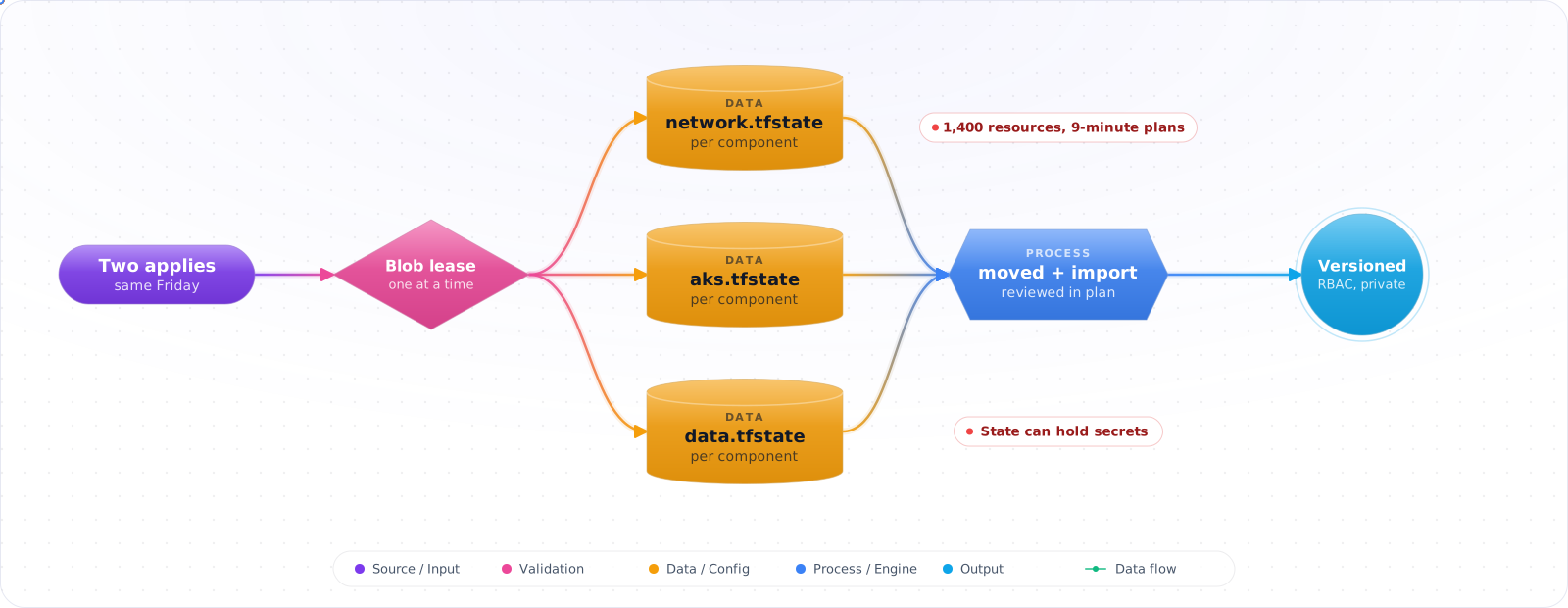
Take a typical case, made up for illustration. Two engineers ran terraform apply on the same configuration on a Friday afternoon. Both read the same state, made different changes and wrote it back. The second write dropped the first one's records, and the next plan cheerfully proposed creating resources that already existed.
Terraform's state file is its memory of what it manages. Lose it, corrupt it or let two runs fight over it, and Terraform stops telling the truth. Below is how to keep state remote and locked on Azure Storage, how to split it so plans stay fast, how to refactor and import without destroying anything, and why state needs the same protection as your secrets.
- Two teammates ran
terraform applyat the same time and ended up with a corrupted state file - State was accidentally committed to Git — now it contains secrets in your history
- Someone ran Terraform from a local machine with outdated state and deleted a production database
- You've never thought about state backup — and now it's gone
Azure Storage Backend
The most common remote backend for Azure-hosted infrastructure is Azure Blob Storage with Azure-native state locking:
Create the backend infrastructure (one-time setup)
# Create storage account for Terraform state
RESOURCE_GROUP="rg-terraform-state"
STORAGE_ACCOUNT="stterraformstate001"
CONTAINER="tfstate"
LOCATION="westus2"

az group create --name $RESOURCE_GROUP --location $LOCATION

az storage account create \
  --name $STORAGE_ACCOUNT \
  --resource-group $RESOURCE_GROUP \
  --location $LOCATION \
  --sku Standard_LRS \
  --allow-blob-public-access false \
  --min-tls-version TLS1_2

az storage container create \
  --name $CONTAINER \
  --account-name $STORAGE_ACCOUNT

# Enable versioning for state recovery
az storage account blob-service-properties update \
  --account-name $STORAGE_ACCOUNT \
  --resource-group $RESOURCE_GROUP \
  --enable-versioning true
Configure the backend in Terraform
# backend.tf
terraform {
  backend "azurerm" {
    resource_group_name  = "rg-terraform-state"
    storage_account_name = "stterraformstate001"
    container_name       = "tfstate"
    key                  = "production/myapp.tfstate"
    use_azuread_auth     = true   # Use Azure AD instead of storage key
  }
}
# Initialize with the backend
terraform init
# If migrating from local state
terraform init -migrate-stateState Locking
Azure Blob Storage backends use blob lease locking. When terraform apply starts, it acquires a lease on the state blob. Any concurrent operation from another process fails with a lock error. The lock is released when the operation completes (or forcibly broken with terraform force-unlock if a process crashed mid-run).
# List current locks (Terraform Cloud/Enterprise) or check blob lease via CLI
az storage blob show \
  --account-name stterraformstate001 \
  --container-name tfstate \
  --name production/myapp.tfstate \
  --query properties.lease

# Force-unlock if a process crashed (use with caution)
terraform force-unlock LOCK_IDCheck it: Start an apply, and start a second one from another terminal while it runs. The second should be refused because the state is locked.
State File Organization
For multi-environment, multi-team deployments, use separate state files per environment and component:
# State key structure
tfstate/
├── shared/networking.tfstate         # Shared VNet, DNS
├── dev/app.tfstate                   # App layer, dev
├── dev/database.tfstate              # Data layer, dev
├── staging/app.tfstate
├── staging/database.tfstate
├── production/app.tfstate
└── production/database.tfstate
# Use workspaces OR separate backends — not both
# Recommended: separate backend keys per environment
# backend config per environment (passed via -backend-config)
terraform init \
-backend-config="key=production/app.tfstate" \
-backend-config="resource_group_name=rg-terraform-state"
# Or use partial backend configuration files
# backends/prod.hcl
resource_group_name = "rg-terraform-state"
storage_account_name = "stterraformstate001"
container_name = "tfstate"
key = "production/app.tfstate"
terraform init -backend-config=backends/prod.hclCheck it: Time a plan on your largest state. Then list which parts of it change every week, and which almost never do.
Importing Existing Resources into State
When you adopt Terraform for resources that already exist, you need to import them into state rather than recreating them:
# Classic import (Terraform < 1.5)
terraform import azurerm_resource_group.main \
  /subscriptions/sub-id/resourceGroups/rg-prod

# Modern import block (Terraform >= 1.5 — generates config too)
import {
  to = azurerm_resource_group.main
  id = "/subscriptions/sub-id/resourceGroups/rg-prod"
}

# Generate config from import
terraform plan -generate-config-out=generated.tf
Moved Blocks: Refactoring Without Destroy/Recreate
# When you rename a resource in config, Terraform thinks it's a new resource
# Use 'moved' blocks to tell Terraform about the rename:

moved {
  from = azurerm_storage_account.old_name
  to   = azurerm_storage_account.new_name
}

# Terraform will update state without destroying/recreating the resourceCheck it: Rename a resource in a test configuration with a moved block, and run a plan. It should show a move and no change to the real resource.
State Backup and Disaster Recovery
# Manual backup before risky operations
terraform state pull > backup-$(date +%Y%m%d-%H%M%S).tfstate

# List all resources in state
terraform state list

# Show state for a specific resource
terraform state show azurerm_storage_account.main

# Remove a resource from state (without destroying it)
terraform state rm azurerm_storage_account.orphaned

# Restore from a backup. Stop all other runs first, because this replaces the live state.
terraform state push backup-20260801-143000.tfstate
terraform plan   # the backup may be older than reality, so reconcile before any apply
With Azure Blob versioning enabled, you can restore previous versions of the state file through the portal or CLI without needing manual backups.
Check it: Restore yesterday's version of a non-production state file. Time it, and write the steps down.
Removing Resources From State, and Protecting What Is in It
Sometimes Terraform should stop managing a resource without deleting it: a database handed to another team, or a resource moving to a different configuration. Running terraform state rm does this outside code review. Since Terraform 1.7 aremoved block expresses it as configuration, so the change is planned and reviewed like any other.
removed {
  from = azurerm_storage_account.legacy
  lifecycle {
    destroy = false      # forget the resource, leave it running
  }
}
Treat the state file as sensitive data. It holds every attribute of every resource, including generated passwords and connection strings in plain text. Turn on encryption and versioning on the backend storage, limit read access to the pipeline identity and a small group of operators, and practise restoring an earlier version before you need to do it during an incident.
Production Checklist
- Always use remote state — never commit
.tfstateto Git - Enable blob versioning on the state storage account for recovery
- Use
use_azuread_auth = truefor the backend — no storage account keys in CI - Separate state files per environment; don't use workspaces as an environment strategy
- Back up state before any destructive refactoring with
terraform state pull - Use
movedblocks when renaming resources — don't destroy and recreate - Restrict write access to state storage. A plan needs cloud read access and, with locking on, enough backend access to take the lock, so test least-privilege roles with locking enabled
Newer Ways to Keep Secrets Out of State
State has always been the risky part of Terraform, because it stores resource attributes in plain text, including passwords. Two features finally address that. Ephemeral resources, from Terraform 1.10, are read during a run and never written to state. Write-only arguments, from 1.11, let you send a value to a provider without storing it. Together, they let you fetch a secret from Key Vault and pass it to a database resource with nothing left behind:
ephemeral "azurerm_key_vault_secret" "db" {
  name         = "db-admin"
  key_vault_id = azurerm_key_vault.main.id
}

resource "azurerm_mssql_server" "main" {
  # ...
  administrator_login_password_wo         = ephemeral.azurerm_key_vault_secret.db.value
  administrator_login_password_wo_version = 1
}
Write-only arguments need Terraform 1.11 or later plus a provider version that supports them, and support varies, so check the docs for each resource. Bump the version argument to rotate the secret. OpenTofu takes a different approach, with client-side state encryption built in, which protects the entire file at rest. If you've moved to OpenTofu, turn that on.
Recovery
Every team eventually has a bad day with state. Prepare for it. Turn on versioning on your state bucket or storage account, so that you can restore an earlier copy. Practise it once, in a non-production environment. Take a terraform state pull before any manual surgery. Never edit state by hand if a command will do: terraform state mv, moved blocks and import blocks all exist for this. moved and import blocks are better than the commands, as they go through code review and show up in a plan.
Refactoring safely
Splitting a large state file is the most useful maintenance you can do. A stack that takes 20 minutes to plan slows every change, and increases the blast radius of each mistake. Split by lifecycle: networking changes rarely, and apps change daily, so they shouldn't share state. Use removed blocks and import blocks to move resources between stacks, and check that the plan shows no changes before you apply. Share values through outputs and remote state data, or better, through a lookup by name, which keeps stacks loosely coupled.
Access to state is access to production secrets, so lock it down, and audit who can read it. A state file in a shared bucket that everyone can read is a credentials leak waiting to be found.
Try It on Your Own System This Week
Three checks on your Terraform state, about an hour in total:
- Search your Git history for a state file. If one was ever committed, its secrets are in the history.
- List who can read the state storage. Access to state is access to production secrets.
- Check that versioning is on for the state storage. It is your way back after a bad day.
Locking Has Changed
On AWS, Terraform can now lock with S3 alone, using use_lockfile = true, so you no longer need a DynamoDB table for new setups. On Azure, blob leases handle this for you. If a lock gets stuck, check who holds it before you run force-unlock, because forcing a lock during a live apply can corrupt state.