
Start With a Simple Dockerfile
For an image that only runs on your own machine, a single-stage Dockerfile with every tool in it is fine, and often more useful. The work below is for the image you ship, where size, repeatability and what the process is allowed to do start to matter.
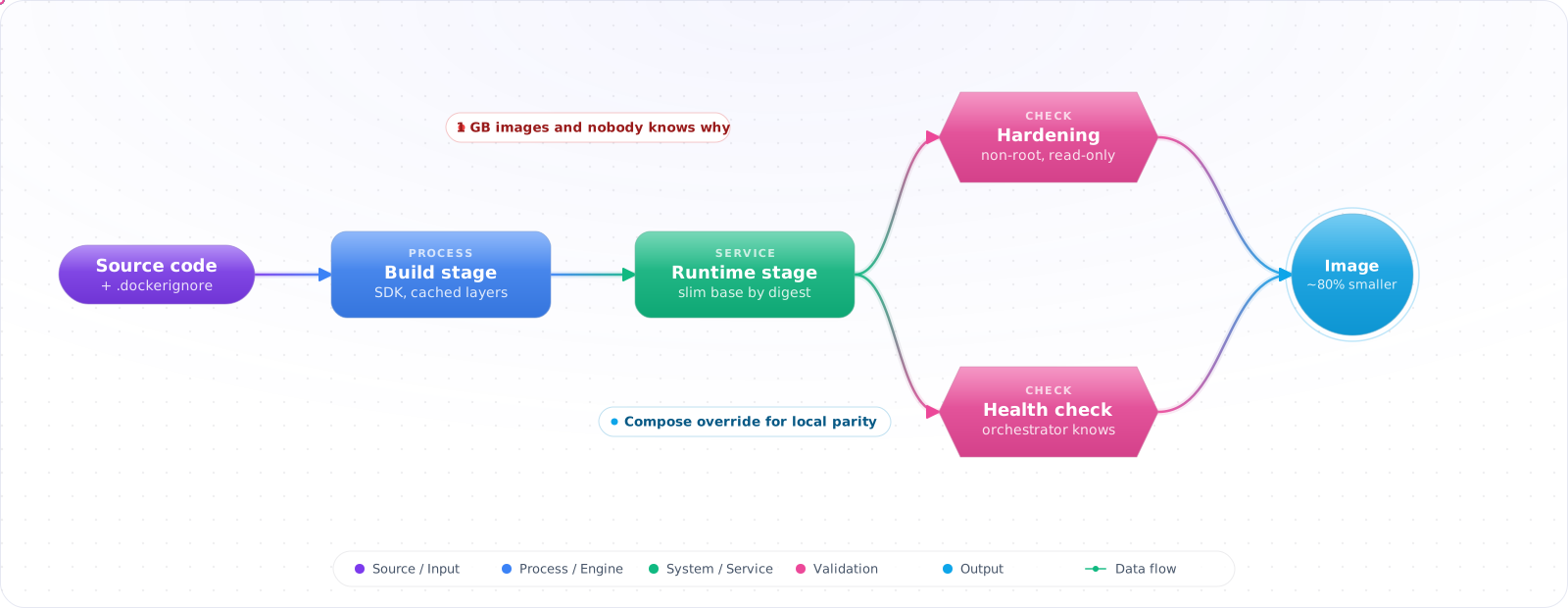
A 2GB Docker image with dev dependencies, a shell, and npm installed is not a production image. It's a dev environment in a container. Production images should be small, reproducible, run as non-root, and have a minimal attack surface. Multi-stage builds get you there without sacrificing build-time tooling.
- Your Docker images are 1GB+ and you're not sure why
- You run your containers as root because it's the path of least resistance
- Your Dockerfile has a
COPY . .early, invalidating cache on every file change - Your compose file for local dev is the same as production — or production has no containers at all
A properly layered multi-stage Dockerfile with a distroless runtime stage often shrinks an image several times over and removes whole categories of packages you would otherwise have to patch.
Multi-Stage Builds
Multi-stage builds use multiple FROM instructions in one Dockerfile. Only the final stage ships. Earlier stages can have compilers, dev tools, and test runners — none of it ends up in the production image.
flowchart LR
    deps["deps stage
node:24-alpine
install production deps"] --> runner
    build["build stage
node:24-alpine
compile TypeScript"] --> runner
    runner["runner stage
node:24-alpine
only: node_modules + dist"]

    style runner fill:#16a34a,color:#fff,stroke:#15803d
    style deps fill:#0078D4,color:#fff,stroke:#005a9e
    style build fill:#0078D4,color:#fff,stroke:#005a9e
# Dockerfile — Node.js production multi-stage build
FROM node:24-alpine AS base
WORKDIR /app
# Install pnpm
RUN corepack enable pnpm

# ---- Dependencies stage ----
FROM base AS deps
COPY package.json pnpm-lock.yaml ./
# Install only production deps
RUN pnpm install --frozen-lockfile --prod

# ---- Build stage ----
FROM base AS build
COPY package.json pnpm-lock.yaml ./
# Install all deps including dev (for TypeScript, etc.)
RUN pnpm install --frozen-lockfile
COPY . .
RUN pnpm build

# ---- Runner stage (production) ----
FROM node:24-alpine AS runner
WORKDIR /app

# Don't run as root
RUN addgroup --system --gid 1001 nodejs && \
    adduser --system --uid 1001 nextjs

# Copy only what's needed from previous stages
COPY --from=deps /app/node_modules ./node_modules
COPY --from=build /app/dist ./dist

USER nextjs

EXPOSE 3000
ENV PORT=3000
ENV NODE_ENV=production

CMD ["node", "dist/server.js"]Check it: Build the image and list what's inside the final stage. There should be no compiler, no package manager and no test files. Then compare its size with the old image.
Layer Caching Strategy
Docker invalidates cache for a layer when the layer's instruction or its inputs change. Every subsequent layer is also invalidated. Order matters: put frequently changing things last.
# ❌ Bad order — COPY . . early means every file change rebuilds deps
FROM node:24-alpine
WORKDIR /app
COPY . .                     # all files — cache busted on every change
RUN npm install              # re-runs every time
RUN npm run build

# ✅ Good order — copy manifests first, then source
FROM node:24-alpine
WORKDIR /app
COPY package.json package-lock.json ./   # only changes when deps change
RUN npm ci                               # cached unless manifests change; the build needs dev deps
COPY . .                                 # source changes don't bust dep cache
RUN npm run buildCheck it: Change one source file and rebuild. The dependency install step should come from cache. If it runs again, something that changes often is being copied before it.
Security Hardening
# Minimal attack surface with distroless (Google)
# Build on the same Node major and libc (Debian 12, glibc) as the runtime stage,
# or native modules compiled here will not load there.
FROM node:22-bookworm-slim AS build
WORKDIR /app
COPY package.json pnpm-lock.yaml ./
RUN corepack enable pnpm && pnpm install --frozen-lockfile
COPY . .
RUN pnpm build

# gcr.io/distroless/nodejs22 — no shell, no package manager, no debug tools
FROM gcr.io/distroless/nodejs22-debian12 AS runner
WORKDIR /app
COPY --from=build /app/dist ./dist
COPY --from=build /app/node_modules ./node_modules
USER nonroot
EXPOSE 3000
CMD ["dist/server.js"]

# Scan image for vulnerabilities in CI:
# docker scout cves myimage:latest
# trivy image myimage:latest
Note the base image of the build stage. Packages with native code (image processing, bcrypt, some database drivers) compile against the Node version and the C library of the stage that runs pnpm install. Alpine uses musl, Debian uses glibc, and a module built for one fails to load on the other with an error about a missing shared library or an invalid ELF header. Copyingnode_modules between stages is only safe when both stages share the Node major version and the libc.
Check it: Run the container and find out which user the process runs as. It shouldn't be root. Then try to open a shell in it. On a distroless image there isn't one.
It Works Locally and Not in the Cluster
Most container bugs that survive local testing come from a short list. Check these before anything clever:
exec format error. The image was built for a different CPU architecture, typically an ARM laptop pushing to x86 nodes. Build with--platform linux/amd64or as a multi-platform image.EACCESwhen writing files. The app now runs as a non-root user but writes to a directory owned by root, often a cache or upload folder. Create the directory in the Dockerfile andchownit, or write to a mounted volume.- Slow or unclean shutdowns. With the shell form
CMD npm start, the shell is PID 1 and may not passSIGTERMon to Node, so the orchestrator waits for the grace period and then kills the process mid-request. Use the exec form (CMD ["node", "dist/server.js"]) and run Node directly rather than through npm. - No shell to debug with. Distroless images have no shell by design. On Kubernetes, attach an ephemeral debug container with
kubectl debug -it pod-name --image=busybox --target=appinstead of rebuilding with a shell.
Keeping Images Patched
An image is a snapshot of its base image on the day it was built. Your code may not change for a month while the base image gets several security fixes, and none of them reach production until something triggers a rebuild. Three habits close the gap:
- Scan in CI and fail on what you can fix.
trivy image --exit-code 1 --severity CRITICAL,HIGH --ignore-unfixed myimagefails the build only for vulnerabilities that have a patched version available, which keeps the gate actionable instead of permanently red. - Rebuild on a schedule. A weekly pipeline that rebuilds and redeploys the current release picks up base image patches even when nobody is changing the code.
- Record what is inside.
docker buildx build --sbom=true --provenance=trueattaches a software bill of materials and build provenance to the image, so when the next widely publicised vulnerability lands, you can answer “are we affected?” with a query instead of a scramble.
Check it: Look at the build date of the image running in production. If it's older than the latest patch to its base image, nothing has pulled that fix in.
Compose for Local Development
# compose.yml — local dev with hot reload
services:
  app:
    build:
      context: .
      target: build  # Use build stage, not production runner
    ports:
      - '3000:3000'
    volumes:
      - .:/app                       # mount source for hot reload
      - /app/node_modules            # exclude node_modules from mount
    environment:
      - NODE_ENV=development
      - DATABASE_URL=postgres://postgres:postgres@db:5432/dev
    depends_on:
      db:
        condition: service_healthy

  db:
    image: postgres:16-alpine
    environment:
      POSTGRES_PASSWORD: postgres
      POSTGRES_DB: dev
    ports:
      - '5432:5432'
    volumes:
      - postgres-data:/var/lib/postgresql/data
    healthcheck:
      test: ['CMD-SHELL', 'pg_isready -U postgres']
      interval: 5s
      timeout: 5s
      retries: 5

  redis:
    image: redis:7-alpine
    ports:
      - '6379:6379'

volumes:
  postgres-data:
Production Compose Override
# compose.prod.yml — overrides for production
# Run with: docker compose -f compose.yml -f compose.prod.yml up -d
services:
  app:
    build:
      target: runner  # Use production stage, not build stage
    volumes: !reset [] # No source mounting; a plain [] wouldn't clear the base list
    environment:
      - NODE_ENV=production
    restart: unless-stopped
    logging:
      driver: 'json-file'
      options:
        max-size: '10m'
        max-file: '3'
    deploy:
      resources:
        limits:
          memory: 512M
        reservations:
          memory: 256M
.dockerignore
# .dockerignore — keep the build context small
node_modules
.git
.gitignore
*.md
.env
.env.*
dist
coverage
.next
.turbo
**/__tests__
**/*.test.ts
**/*.spec.ts
.eslintrc*
tsconfig*.json
jest.config.*
Faster Builds and Reproducible Images
Layer ordering gets you most of the way. Cache mounts and digest pinning cover what is left: dependency downloads that repeat on every build, and base images that change underneath a tag.
# syntax=docker/dockerfile:1
FROM node:24-alpine AS build
WORKDIR /app
COPY package.json pnpm-lock.yaml ./
# The package store persists across builds without ending up in a layer
RUN --mount=type=cache,target=/root/.local/share/pnpm/store \
    corepack enable && pnpm install --frozen-lockfile
COPY . .
RUN pnpm build- Cache mounts keep package caches between builds even when the lockfile changes, so one new dependency no longer means downloading all of them again.
- Digest pinning (
FROM node:24-alpine@sha256:...) makes a build repeatable. A tag such as24-alpineis updated in place whenever the base image is patched, which is convenient until two builds of the same commit differ. - Tag by commit, deploy by digest. Push an immutable tag per commit and reference the digest in your deployment manifests. A mutable
latesttag makes rollbacks ambiguous. - Build for the architecture you run. If developers are on ARM laptops and production is x86, or the reverse, build multi-platform images with
docker buildx build --platform linux/amd64,linux/arm64so nobody is running under emulation.
Try It on Your Own System This Week
Three checks on an image you already ship, about an hour in total:
- Check the size of your production image. Then list its largest layers. The biggest one usually shouldn't be there.
- Read the image history and look for secrets. Anything passed as a build argument is visible in the layers.
- Find out which user the container runs as. If it's root, add a user before the command and fix the permissions that break.
Pitfalls
Secrets in build args
Never pass secrets (API keys, tokens) via ARG or ENV in a Dockerfile. They end up in the image layers and are visible with docker history. Use Docker BuildKit secrets (RUN --mount=type=secret) or inject at runtime via environment variables.
Running as root
Most base images default to root. Add a USER instruction before CMD. If your app needs to bind to port 80, use a reverse proxy (nginx, traefik) in front and have your app listen on 3000+ instead of running as root.
Using latest tags
FROM node:latest in production means your image is not reproducible. The build that passes CI today might fail tomorrow whenlatest moves. Pin to a specific version: node:24.12.0-alpine.
A Quick Check Before You Ship
Run docker scout or Trivy on the final image, not only on the base. Use --provenance and --sbom with BuildKit so that the image carries its own record, and pin your base image by digest.